A TradeMaster practice exercise
Audit a Signal
An alert arrives, the broker accepts an order, and a report shows an outcome. Each record tells you something different. Check what actually filled, then apply the same process to a win and a stop loss.
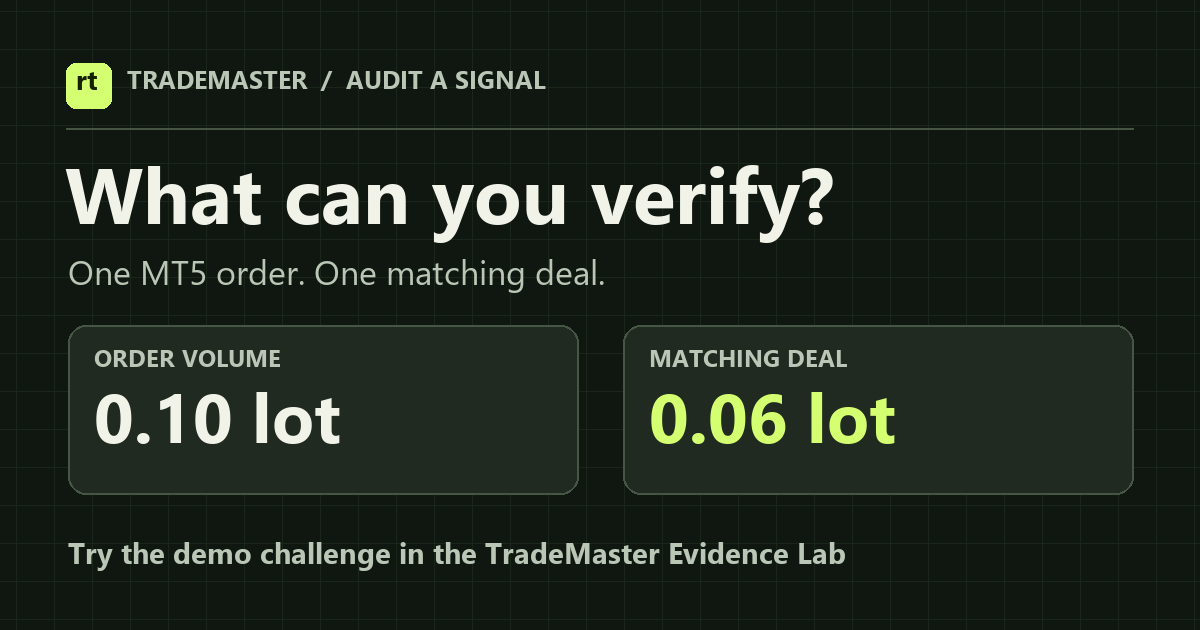
What filled in this MT5 example?
On a demo account, an accepted buy order requests 0.10 lot. The only matching deal you can find is for 0.06 lot. What can you verify, and what would you check next?
Reveal the answer
The deal confirms that 0.06 lot executed at its recorded price. Check for other deals tied to the order, then read the order's final status to see what happened to the remaining 0.04 lot. Compare the recorded execution price and volume with the signal's intended values.
Reference: MetaQuotes documentation on orders, deals and positions.
How to check a revised signal in MT5
If an entry or stop changes after the original signal, compare both instructions and their times before checking the broker record. A signal edit alone does not confirm that an order or position changed.
- For a pending order, match the ticket and inspect its current entry price and stop loss.
- For an open position, match the position and check its recorded stop loss.
- If your EA submits a modification, check the broker response and the resulting order or position. Investigate any rejection before assuming the revision took effect.
Reference: MetaQuotes on modifying pending orders. Ask setup questions in TradeMaster Discord.
Check a win and a stop loss
TradeMaster's bot posted a signal report covering through . Across the five displayed categories, it labelled 78 outcomes Profit and 9 Stop Loss. The labels describe reported signal outcomes. An individual account's return requires its own fills, sizing and costs.
Before comparing win rates, write down the report's date range and which signals are eligible. Check how it treats partial targets, break-even exits and signals still open at the end of the period. Apply the same rules to every eligible closed signal. To compare results on your own account, check the executed prices, position sizes and costs in MT5 history.
- Open the dated report in Discord and pick one result with each label.
- Note each signal ID and list the broker fields you would check on demo, such as deal time, execution price and executed volume.
- Bring one question to #education. Share signal IDs and keep your account information private.
Already a member? Open the discussion in #education.
Send the challenge to a trading partner
Compare what each of you would check in the broker history before revealing the answer.
Where Autobot fits
Autobot can automatically execute analyst signals on a configured MT5 account. Start on demo and verify the deal records at your broker. TradeMaster's signals and Autobot have a seven-day trial, with paid access after. Trading involves risk.